Verify Windows sign-ins.
Stop attacks before they get in.
Dynacop adds person-based MFA to Windows console and RDP sign-ins, makes failed attempts visible, and automatically blocks attacker IP addresses in Windows Firewall. One lightweight agent, one management panel.
Free for up to 10 users and 5 computers · No credit card required · Setup in about 4 minutes

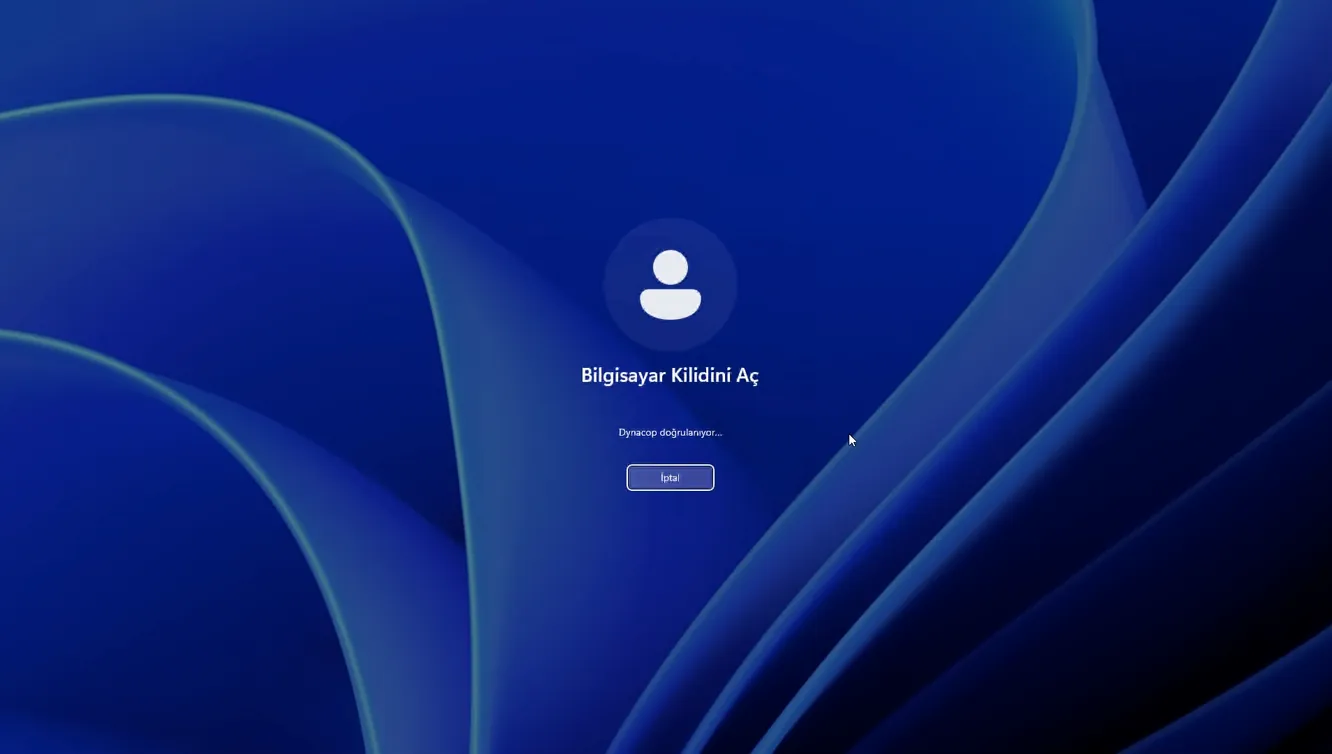
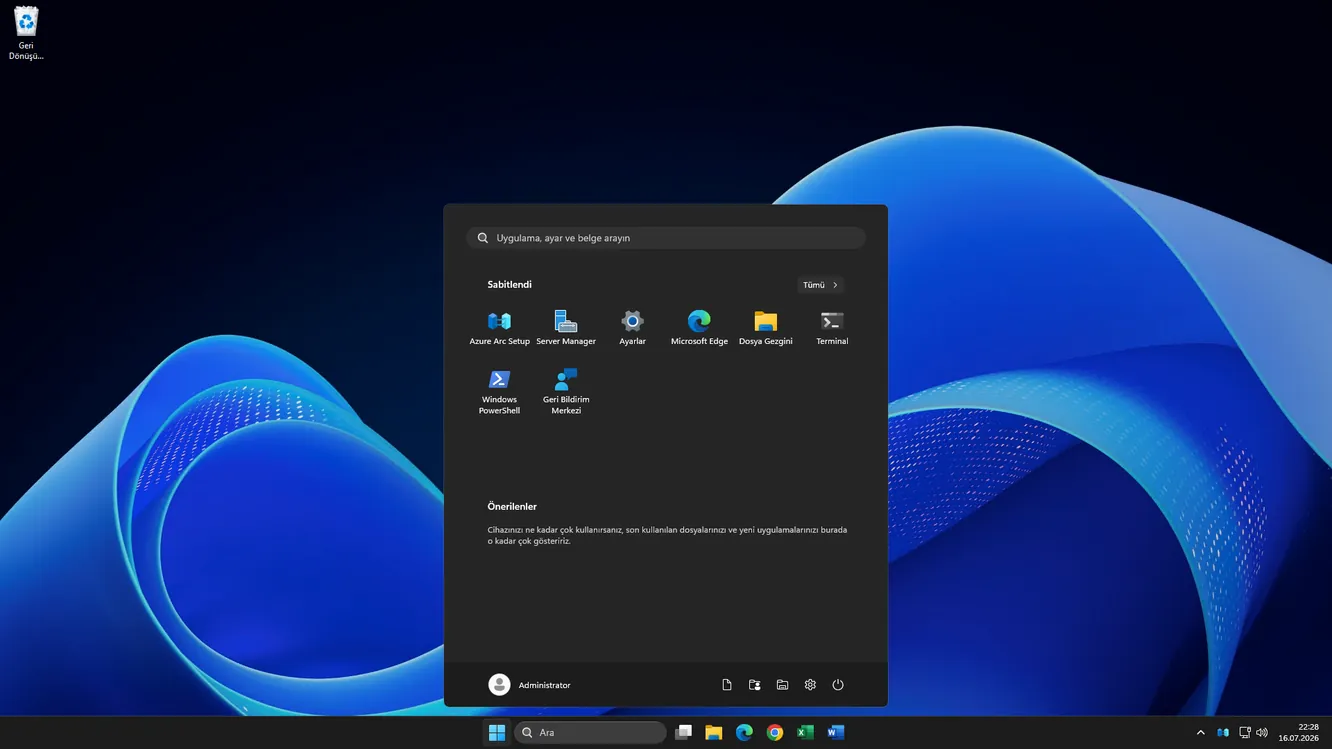
What happens during a Windows sign-in?
Dynacop adds person verification and security policy to the sign-in flow — without changing your existing Windows authentication.
From the console or over RDP, with their existing username and password.
Primary authentication stays in Windows — Dynacop never sees the password.
A 6-digit code from the phone app; the rules come from the person and machine policy.
The result is recorded under the person's name; failed attempts go to Shield.
Add MFA to Windows console and RDP sign-ins.
Users keep signing in with their existing Windows accounts. Dynacop verifies the person with a second step before the sign-in completes, and only authorized access gets through.
- Local console and RDP sign-ins
- Per-person and per-machine policies
- Centrally managed verification rules
- Secure offline access under the policy you set
See the person behind the shared Windows account.
Even when a shared "Administrator" or another common account is used, Dynacop attaches the real person who completed verification to the sign-in record.
Person ≠ Account →
See where the attack comes from. Block the source right on the machine.
Dynacop Shield watches failed sign-in events and correlates source IPs, targeted accounts, and attempt intensity. The decision is two-layered: burst rate within a short window AND cumulative persistence — thresholds are tuned per resource, and safe lists are never blocked. An offending IP is blocked in Windows Firewall for a limited time; the duration escalates on repeat, and persistent attackers stay blocked for up to 30 days.
- Recorded the usernames that were tried
- Made the incident visible on the panel and the map
Manage every person, machine, and sign-in from one panel.
Manage access, apply policies, and review sign-in events centrally — without connecting to servers one by one.
- Central policy management
- Person and machine inventory
- Person-level sign-in and attack history
- Weekly security summary (digest)
- Panel, emails, and the sign-in screen in English and Turkish
Protect your first machine in about 4 minutes.
No infrastructure changes, no separate appliance, no consulting engagement.
Run the signed MSI on the machine you want to protect — or deploy in bulk via GPO/RMM.
Enter the registration code from the panel; the machine appears in your inventory.
Invite the people to protect, pick the policy, and test your first sign-in.
It doesn't change Windows. It strengthens the Windows sign-in.
- Your existing Windows account structure stays as is — nobody migrates to new accounts
- Passwords are never sent to the cloud; primary authentication stays in Windows
- Policies apply per person and per machine
- Works on machines outside a domain, too

One team. Many customers. A single security view.
MSPs manage all their customers as isolated environments in one console: technicians never consume licenses, weekly reports arrive with per-customer breakdowns, and billing is handled in one place.
Share what Dynacop sees with the rest of your stack.
Receive blocked and suspicious IP addresses as a JSON API or a plain-text threat feed. Create your key from the panel's Integrations screen in a minute.
Correlate the event and block stream in your SIEM.
Pipe the plain-text IP list into your blocklist.
Trigger your incident-response flows with Dynacop data.
{
  "ip": "185.220.101.4",
  "attempts": 42,
  "services": { "rdp": 38, "ssh": 4 },
  "blocked": true,
  "last_seen": "2026-07-18T06:41:00Z"
}
Sample record — real endpoint: GET /api/v1/attacks
Who is Dynacop for?
Close the RDP door to password guessing.
Explore →Businesses with shared admin accountsSee the real person behind the shared account.
Explore →IT teams running Windows serversWatch the attack, block the source automatically.
Explore →Product FAQ
Are Windows passwords sent to Dynacop?
No. Your password stays in Windows and is never transmitted to Dynacop or the cloud; Windows performs the primary authentication, and Dynacop only verifies the second step (the 6-digit code).
What happens if the internet or Dynacop is unreachable?
Sign-ins don't stop: codes can be verified on the machine itself (offline mode). And you decide at setup what the door should do without connectivity — stay open (fail-open) or stay locked (fail-closed). The full decision table: what happens when the internet is down?
Which Windows versions are supported?
Windows 10/11 and Windows Server 2012 and later. Compatible with RDP and NLA (Network Level Authentication); works on machines outside a domain, too.
How does it track a shared Administrator account?
Every person signing in with the shared account verifies with the code on their own phone, so the record is kept under the real person, not the Windows account. Instead of "Administrator signed in", you see "Ayşe signed in using the Administrator account".
If Dynacop is removed, do Windows sign-ins keep working?
Yes. Dynacop doesn't replace Windows' own authentication; when removed, sign-ins return to the standard Windows flow.
Does setup require Active Directory or infrastructure changes?
No. The installer plus a registration code from the panel is enough; your AD schema, GPOs, and account structure are untouched. Machines without a domain work the same way.
Will the agent slow the machine down?
No. The agent is a native Windows service written in C++ — it carries no .NET, Java, or Electron runtime and talks directly to the Windows APIs. It works at sign-in time and while processing event records, with no continuous background scanning — so its CPU and memory footprint is very small.
How exactly does IP blocking work?
It's more than a simple counter: on each machine, Shield aggregates failed attempts per IP and applies a two-layer analysis — burst intensity within a short window AND cumulative persistence, so low-and-slow bots get caught too. Thresholds are tuned per resource; IPs on your safe list and the IPs of real users who recently signed in successfully are never blocked. A block starts as a time-limited Windows Firewall rule and escalates from 15 minutes up to 24 hours on repeat; persistent attackers stay blocked for up to 30 days. The decision is made on the machine — protection continues even if the internet is down.
Can I manage multiple customers as an MSP?
Yes — all your customers live in one console as isolated tenants; your technicians never consume licenses, and you receive a single invoice.
Your first 10 users are free.
Protect your first Windows sign-in in about 4 minutes.
No credit card required · No minimum purchase